Project Online is Reaching End of Life

Here’s How to Prepare with Marque360

Microsoft has announced the end of life for Project Online, signaling the shift toward modern, cloud-based project management tools like the new Microsoft Planner (formerly Project for the Web). For organizations that have relied on Project Online for years, this transition might feel daunting but also timely to modernize your PMO. With Marque360’s solutions, Migrate360 and PPM360, moving to the future of work management is easier than ever.

With Project Online reaching end of life, organizations have two primary paths forward:

  1. Planner Microsoft’s modern, cloud-based work management solution that integrates deeply with Teams and the Power Platform. Planner provides a simple, intuitive experience for managing tasks and projects, while scaling up with advanced governance and reporting through accelerators like PPM360.

Planner with PPM360

With Marque360’s PPM360 Planner Accelerator, the common gaps between Project Online and Planner are fully mitigated, adding advanced governance, portfolio reporting, resource management, and risk tracking so organizations retain and even expand upon the functionality they relied on in Project Online.

  • Centralized Project Intake Just like Project Online, PPM360 allows teams to capture, evaluate, and approve project requests.
  • Portfolio Dashboards Replicates the portfolio views and reporting Project Online users depended on, now powered by real-time Power BI.
  • Resource Management Provides visibility into resource availability, assignments, and workloads.
  • Risk & Issue Tracking Built-in tools ensure risks and issues are managed effectively, maintaining continuity from Project Online.
  • Document Management Seamless integration with SharePoint ensures project documents remain easily accessible.
  • Project Governance Governance workflow features ensure organizations maintain the control, visibility, and structure they relied on in Project Online

With PPM360, your teams gain the familiar structure of Project Online while taking advantage of modern innovations.

Below is a feature comparison table showing how Project Online functionality maps to PPM360 terminology and capabilities:
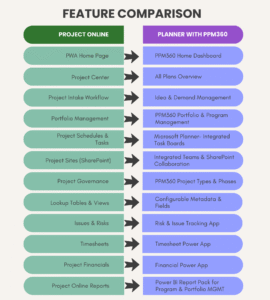
 

This mapping ensures continuity for teams transitioning from Project Online, while leveraging modern, integrated features through Planner and the Power Platform.

  1. Project Server Subscription Edition

An on-premises solution that serves as the successor to Project Online for organizations requiring local hosting and more traditional project portfolio management.
For organizations that require local hosting, stricter control over their IT environment, or have regulatory or compliance mandates that prevent full cloud adoption, Project Server Subscription Edition remains a viable option. This on-premises solution is the natural successor to Project Online for enterprise organizations that need a traditional project portfolio management (PPM) platform.
While Project Server provides a more traditional PPM experience, it does not natively include AI-powered insights, Copilot integration, or the same level of seamless collaboration available in Planner with PPM360. Organizations should weigh the benefits of a cloud-first, intelligent project management platform against the control and customization of an on-premises solution.
Seamlessly Transition with Migrate360

Marque360’s Migrate360 tool ensures your transition from Project Online is fast, accurate, and stress-free. With automated migration capabilities, Migrate360 transfers your critical data in minutes, including:

  • Projects, tasks, and assignments
  • Resources and roles
  • Risks, issues, and lookup tables
  • Project documents

Unlike manual approaches, Migrate360 minimizes downtime and ensures that your teams can continue working without disruption.
Partner with Marque360

At Marque360, we’ve helped organizations across industries successfully migrate to Microsoft’s modern project management ecosystem. With Migrate360 and PPM360, we make the transition smooth, secure, and future-ready.
Don’t wait until Project Online support ends. Prepare today, and set your teams up for long-term success.

Contact us today to schedule your migration assessment.

Microsoft 365 Myth #1: Planner Is Just For Task Management

When most people hear “Microsoft Planner,” they picture a basic to-do list—something to jot down a few action items and check them off when done.


We hear this all the time from organizations we work with. At first glance, Planner looks simple, maybe even too simple for real project management. But in our experience at Marque360, that first impression rarely tells the whole story. With the right setup and strategy, Planner transforms into a powerful hub for collaboration, visibility, and accountability.


Let’s break down the myth that Planner is “too basic” and highlight how it can support everything from day-to-day work to enterprise-level initiatives.


Myth: Planner is only for small, individual tasks

Reality: Planner can manage everything from quick to-dos to complex, cross-department projects—and it integrates seamlessly across Microsoft 365 to streamline your workday.


1. A Clear, Visual Way to Organize Work

Boards, Buckets, and Labels give teams the ability to organize tasks by phase, priority, or department. Instead of juggling scattered notes or long lists, teams get a clean, visual layout that makes project status instantly clear.


2. Real-Time Collaboration in Microsoft Teams

Because Planner lives directly inside Microsoft Teams, your team doesn’t have to jump between apps. Tasks, files, comments, and conversations stay connected in one place, keeping projects moving without disrupting the flow of work.

Article content


3. Progress at a Glance

Charts and Schedule view provide quick insights into what’s on track, what’s behind, and where workloads may need to be balanced. For organizations that want deeper reporting, connecting Planner to Power BI unlocks even greater visibility.


4. Fully Connected Across Microsoft 365

Planner isn’t a standalone tool—it works hand-in-hand with the rest of Microsoft 365. Deadlines appear in Outlook, files link directly from SharePoint, and updates sync with Teams. That connectivity reduces friction and ensures teams spend more time working and less time searching for information.


5. Scales with Your Team’s Needs

From small campaigns to company-wide rollouts, Planner adapts. We’ve helped organizations use it for IT ticketing, onboarding programs, product launches, and more.

And for organizations that need enterprise-level work management, Planner’s power grows even further when combined with the Microsoft Power Platform. This combination allows us to build complete enterprise work management systems tailored to your business. At Marque360, we’ve developed a preconfigured Planner accelerator—PPM360—that brings structure, governance, and advanced reporting to Planner, turning it into a true enterprise-ready solution.


The Takeaway

At Marque360, we’ve seen Planner shift from a simple checklist tool into a powerful project management solution when implemented with the right structure. It keeps teams aligned, accountable, and connected—no matter the size of the project.

If your organization is ready to get more out of Microsoft Planner, our team can help you design the right framework, connect it across Microsoft 365, and unlock its full potential.

Why It’s Time to Embrace the New Microsoft Planner

If your organization is still using Microsoft Project Online, it’s time to start planning ahead. While Microsoft hasn’t announced an official retirement date, it’s clear that Project Online is no longer the focus of Microsoft’s development efforts. Instead, Microsoft is investing in a modern, streamlined project management experience built into the new Microsoft Planner.


Why Microsoft Is Moving Away from Project Online

Project Online has been a core solution for enterprise project and portfolio management for years. However, its legacy infrastructure and complexity have made it increasingly difficult to adapt to the way today’s teams work—fast, collaborative, and across departments.

Here’s why Microsoft is shifting away:

    • Built on Outdated Technology: Project Online relies on SharePoint infrastructure, which limits scalability and agility.
    • Complex UI: The tool was designed for large-scale predictive project planning, making it a challenge for teams supporting smaller initiatives or using blended methodologies
    • Limited Innovation: Microsoft has paused new features and enhancements for Project Online to focus on its modern alternatives.
    • Deprecated Dependencies: Features like SharePoint Designer workflows and InfoPath forms—often used alongside Project Online—are being deprecated, which can introduce risks or service gaps for organizations still relying on them.


    Meet the New Microsoft Planner

    Microsoft is combining the best of Planner, To Do, and Project for the Web into a single, unified experience: the new Planner. This new tool supports everything from personal task tracking to enterprise project portfolio management—all within Microsoft Teams and Microsoft 365.

    What’s new in Planner:

    • Seamless integration with Microsoft 365 apps like Teams, Outlook, Loop, and Copilot
    • Scalable for both simple tasks and complex projects
    • Clean, intuitive UI for all types of users
    • Multiple work views (board, timeline, charts, Gantt)


    What This Means for Project Online Users

    While Project Online is still supported today, it is not receiving new features, and Microsoft is strongly encouraging customers to transition to the new Planner.

    Continuing to rely on Project Online means:

    • Sticking with legacy systems and outdated architecture
    • Missing out on AI-powered features like Microsoft Copilot
    • Facing compatibility risks as supporting technologies like SharePoint workflows and InfoPath are deprecated

    It’s also worth noting that Microsoft has announced the retirement of Project for the Web and related apps (like Roadmap and the Project app in Teams) in August 2025. All users will be redirected to the new Planner experience; highlighting Microsoft’s unified direction for work and project management.


    Benefits of Making the Move

    Tools and services like PPM360: Planner Accelerator can help bridge the gap between features you might be missing by making the move to Planner. PPM360 utilizes the Power Platform to seamlessly upgrade your Planner experience with a full enterprise work management platform.

    Benefits of modernizing your project environment:

    • Consistent experience across Microsoft 365
    • Enhanced collaboration and governance
    • Real-time insights powered by Power BI and Copilot
    • Reduced risk from deprecated components like SharePoint workflows


    Ready to Migrate from Project Online?

    Marque360 helps organizations modernize their project management experience with Migrate360, a migration solution that effortlessly moves your projects, tasks & schedules.

    • Migrate from Project Online in minutes
    • Keep your governance, schedules, and data intact
    • Empower your teams with modern tools like Copilot, Teams, and Power BI

    Talk to an expert and see how easy it is to move forward.

Seamlessly Migrate from Project Online to Planner with Migrate360

Why Move to Planner?

Moving to Microsoft Planner provides a modern, intuitive project management experience that enhances collaboration and productivity. Here are some key reasons to make the switch:

  • Better Integration – Seamlessly connects with Microsoft 365 apps like Teams, Outlook, and SharePoint.
  • Improved Collaboration – Enables real-time team collaboration with task assignments and progress tracking.
  • User-Friendly Interface – Simplifies project and task management with a clean, visual layout.
  • Cost-Effective – Reduces dependency on complex legacy tools while maximizing your Microsoft investment.
  • Future-Ready – Ensures you stay aligned with Microsoft’s latest innovations and updates.

    Future-Proof Your Project Management

    Microsoft is shifting focus toward modern work management solutions like Planner and the Power Platform. If you’re still using Project Online, now is the perfect time to migrate and future-proof your project management processes. With Migrate360, our powerful migration app, you can transition seamlessly while maintaining all your critical data.

    Effortless Migration with Migrate360

    Our Migrate360 tool makes the transition from Project Online to Planner fast, accurate, and hassle-free. Here’s what you can expect:

    What Gets Migrated?

    Migrate360 ensures that all key project data is transferred seamlessly, including:

    • Projects & Tasks – Maintain task structures, assignments, and schedules.
    • Resources & Roles – Keep team members and role-based assignments intact.
    • Issues & Risks – Carry over critical project risk management elements.
    • Look Up Tables – Ensure reference data is preserved.
    • Project Documents – Migrate important project-related files and attachments.

    Key Benefits of Using Migrate360

    Fast & Seamless Migration

    Our automated tool ensures an accurate migration with minimal disruption, completing transfers in minutes.

    Customizable Migration

    Select specific projects, users, or data to migrate, preventing unnecessary clutter and keeping only what’s important.

    Real-Time Monitoring

    Track your migration progress with a user-friendly dashboard for complete transparency and control.

    Expert Support & Guidance

    With years of expertise in Microsoft project management solutions, our team provides hands-on assistance to ensure a smooth transition.

    Ready to Make the Switch?

    Upgrading your project management tools doesn’t have to be complicated. Migrate360 makes it easy to transition from Project Online to Planner without losing valuable data. Get started today and experience the future of project management.

Marque360: Finalist of 2024 Partner of the Year

Marque360: Finalist of 2024 Microsoft Project & Portfolio Management Partner of the Year

Marque360 announced it has been named a finalist of the Project & Portfolio Management 2024 Microsoft Partner of the Year Award. The company was honored among a global field of top Microsoft partners for demonstrating excellence in innovation and implementation of customer solutions based on Microsoft technology.  

“Our team is incredibly proud to be recognized for the third year in a row! This remarkable achievement showcases our dedication to our customers and our pride in our work,” said Neall Alcott, Managing Partner.

“This recognition is a testament to our company’s focus on customer success, continuously improving the Enterprise Work Management offering by extending capabilities using the Power Platform and supporting our customers in achieving their goals to improve efficiencies within the PMO,” added Deepika Gandhi, Managing Partner.

The Microsoft Partner of the Year Awards recognizes Microsoft partners that have developed and delivered outstanding Microsoft Cloud applications, services, devices, and AI innovation during the past year. Awards were classified in various categories, with honorees chosen from more than 4,700 nominations from more than 100 countries.  

Marque360 was recognized for providing outstanding solutions and services in Project & Portfolio Management. Marque360’s primary mission revolves around addressing customer needs, adapting to market dynamics, and aligning closely with the Microsoft Roadmap. They are at the forefront of reshaping the work management landscape by harnessing the power of the New Microsoft Planner for Collaborative Work Management in conjunction with the Power Platform and Microsoft Teams. Through this strategic integration, they offer clients a seamless and unified experience for Enterprise Work Management. 

“Congratulations to the winners and finalists of the 2024 Microsoft Partner of the Year Awards!” said Nicole Dezen, Chief Partner Officer and Corporate Vice President at Microsoft.  “The momentum generated by numerous AI & Copilot announcements this year fueled innovation from our partners, enabling groundbreaking services and solutions to customers. I am inspired by the capability and creativity in our partner ecosystem and this year’s winners beautifully demonstrate the best of what’s possible with AI and the Microsoft Cloud.”  

The 2024 Microsoft Partner of the Year Awards are announced ahead of MCAPS Start 2024 Microsoft Partner of the Year Awards press release guidelines for Partners, our digital event on July 10th and 11th. Partners will receive recognition at MCAPS Start for Partners ahead of in person celebrations during the week of Microsoft Ignite in November. Additional details on the 2024 awards are available on the Microsoft Partner blog: https://aka.ms/POTYA2024_announcement. The complete list of categories, winners and finalists can be found at https://aka.ms/2024POTYAWinnersFinalists 

Boost Team Collaboration with Microsoft Teams and Planner

In today’s dynamic business environment, fostering effective collaboration within project teams is essential for success. The rise of remote work and the increasing complexity of projects require tools that not only facilitate communication but also streamline project management. Microsoft Teams and Planner are two powerful tools that, when used together, can significantly enhance team collaboration and project execution. 

Why Collaboration Matters 

Effective collaboration is the backbone of any successful project. It ensures that all team members are aligned, tasks are completed efficiently, and project goals are met. Good collaboration leads to better problem-solving, innovation, and a more engaged workforce. However, achieving this requires more than just bringing people together; it necessitates the right tools and strategies. 

Best Practices for Using Microsoft Teams and Planner 

To get the most out of Microsoft Teams and Planner, consider the following best practices:

Create Dedicated Project Channels

Set up dedicated channels in Microsoft Teams for each project. This keeps communication organized and ensures that all project-related information is in one place. Add relevant tabs for Planner tasks, files, and other resources to these channels.

Regular Updates and Check-Ins

Schedule regular updates and check-ins using Teams meetings or chats. Use Planner boards and views to review progress, update tasks, and adjust timelines as needed. This keeps everyone aligned and informed about the project status.

Encourage Real-Time Collaboration

Leverage the real-time collaboration features of both tools. Encourage team members to co-author documents, share feedback instantly, and update task statuses as they work. This reduces delays and improves responsiveness.

Use Notifications Wisely

Configure notifications to keep the team informed without overwhelming them. Use Teams notifications for important updates and task reminders from Planner to ensure that deadlines are met.

Training and Support

Ensure that all team members are trained in how to use Microsoft Teams and Planner effectively. Provide ongoing support and resources to help them make the most of these tools. 

Conclusion 

Fostering collaborative project teams is crucial for success in today’s fast-paced work environment. Microsoft Teams and Planner offer a powerful combination of communication and project management tools that can help your team work together more effectively. By leveraging these tools, you can enhance collaboration, streamline project management, and ultimately achieve your project goals more efficiently. Embrace these technologies and watch your team’s productivity soar!  

Getting Started with Microsoft Project for the Web

What is Microsoft Project for the Web?

MS Project for the web (also known as Project) is Microsoft’s most recent offering for cloud-based work and project management. Project for the web provides simple, powerful work management capabilities and can be used by project managers and team members to plan and manage work of any size.

With Project, all members of the project team are provided with a simple and intuitive way to track schedules, tasks, and task progress.   Microsoft has included multiple ways to interact with a project plan and personalize your experience based on the needs of your organization and your own personal preferences.

Licenses

Project for the web is available for resources with Project Plan licenses 1, 3, or 5.  If you are currently using Project Online, your existing license will likely work with Project for the Web.

Access

On the Microsoft Project Home page, select the “+ New project” option.

get started in PFTW 1

Create a new project

Create a new “Blank project” or use one of Microsoft’s pre-made templates

get started in PFTW 2

Once you have selected an option, your new project will open and you are ready to work on your project!

get started in PFTW 3

Name your project – click the “Untitled project” section to begin entering project details

get started in PFTW 5

Enter tasks – Click “+ Add new task” and begin entering a task name.  To quickly enter task details, press “Tab” to move from one column to the next.

get started in PFTW 6

Capture additional task details by hovering over a task and selecting the “Open Details” option.  Additional task details display on the right panel.

get started in PFTW 7

Note:  Tasks can only be assigned to resources that are included in your organization’s Power Platform environment.
Views
The views provided by Microsoft allow you to work on schedule updates in multiple ways.

get started in PFTW 8

The Grid view uses columns to organize task details and includes a detail pane to capture task details.
The Board view works like MS Planner and uses cards to track task details and allows dragging and dropping to make quick task updates.
The Timeline view includes an interactive Gantt chart that can be used to add dependencies, schedule tasks, and update durations.
The Charts view displays the state of project tasks at a glance.
The People view uses cards, grouped by resources, and provides a way to view tasks based on assignments.
The Goals view allows you to track project tasks based on specific goals identified by the project manager.
The Assignments view allows tracking of tasks assigned to each resource, and the distribution of effort over time.
Your project will save automatically.  When you want to revisit an existing project, you will see it listed on the MS Project Home page.

get started in PFTW 9

Microsoft has created a straightforward, intuitive, and flexible way to build and maintain schedules in Project.

Expanding with PPM360

In addition to tracking project schedules and tasks, most organizations will also require tracking additional project details.

At Marque360, we have extended Project capabilities with our PPM360 accelerator which provides efficient ways to track projects throughout the project life cycle, including intake requests, time tracking, program/portfolio management, RAID tracking, Resource Management, MS Teams integration, Cost tracking, and reports.  PPM360 is pre-configured and it is modular, so you can focus on the parts that will bring the most value to your organization and add more as you grow.

Recognized for Excellence: Marque360 Named Finalist

Marque360 is proud to be recognized as 2023 Microsoft Global Partner of the Year,  Finalist for Project & Portfolio Management- two consecutive years in a row! This recognition highlights the company’s commitment to excellence in innovation and the successful implementation of customer solutions utilizing Microsoft 365 Platform. “We are honored to be named a finalist for the 2023 Microsoft Partner of the Year Award,” Neall Alcott, Managing Partner at Marque360. “This acknowledgment is a testament to our team’s dedication and expertise in delivering exceptional solutions to our customers.”

The Microsoft Partner of the Year Awards is a global recognition program that celebrates Microsoft partners who have demonstrated exceptional skill and achievement in developing and delivering Microsoft-based applications, services, and devices. With over 4,200 nominations received from more than 100 countries worldwide, Marque360 stood out for its outstanding solutions, services, and commitment to the Microsoft Project & Portfolio Management platform.

This award showcases Marque360’s commitment to providing innovative and transformative solutions to its customers. “By leveraging the power of Microsoft365 , specifically Microsoft Project & Power Platform along with Microsoft Teams as the hub for all communication, we have made significant impact on digital transformation and helped organizations thrive in today’s rapidly evolving business landscape.” Deepika Gandhi, Managing Partner at Marque360

Creating a Project Scope in Project For The Web

Why Create a Project Scope?

A project scope guide outlines the goals, deliverables, tasks, deadlines, and resources required to complete a project successfully. Creating a project scope is an essential step in project management, and it offers several benefits, including:

  1. Provides clarity: The project scope defines the goals, objectives, deliverables, tasks, timelines, and resources required to complete the project. It provides clarity about what needs to be accomplished, who is responsible, and when it should be completed.
  2. Establishes boundaries: The project scope establishes the boundaries of the project and ensures that the team does not deviate from the project’s objectives. It helps prevent scope creep, which is a common problem that can cause delays, budget overruns, and other issues.
  3. Improves communication: The project scope serves as a communication tool that helps ensure that all stakeholders have a shared understanding of the project. It helps align expectations and prevent misunderstandings that could cause delays or conflicts.
  4. Facilitates planning: The project scope provides a framework for planning and executing the project. It helps the team identify the tasks, resources, and timelines required to complete the project successfully.
  5. Helps manage risk: The project scope includes a risk management plan that identifies potential risks and outlines strategies for mitigating them. This helps the team proactively manage risks and prevent them from causing delays or other issues.
  6. Facilitates decision-making: The project scope provides a clear framework for decision-making. It helps the team identify trade-offs, make informed decisions, and prioritize tasks based on their importance and impact on the project’s success.

Overall, creating a project scope is a critical step in project management that offers several benefits. It helps establish clarity, boundaries, and a shared understanding of the project, facilitates planning and decision-making, and helps manage risks.

Creating a Project Scope In Microsoft Project

Microsoft Project can be a useful tool for creating and managing a project scope guide, as it allows you to track tasks, assign resources, and

Project Scope 1

generate reports that summarize the project details.

Here are the steps to create a project scope guide in Microsoft Project:

  1. Open Microsoft Project and create a new project file.
  2. Click on the “Tasks” tab and start entering the tasks and activities required to complete the project. Assign each task to a team member and set a duration and deadline for completion.
  3. Click on the “Resources” tab to add the project team members and their roles and responsibilities. Assign each task to the appropriate team member.
  4. Click on the “Project” tab and select “Project Information” to set the project start date, end date, and other project details.
  5. Click on the “View” tab and select “Gantt Chart” to see a visual representation of the project schedule.
  6. Click on the “Reports” tab and select “New Report” to create a report that summarizes the project scope guide. You can choose from aproject scope 2variety of report types and customize the report to include the project description, goals and objectives, deliverables, tasks and activities, timeline, budget, risk management, stakeholder management, quality control, acceptance criteria, and other details.
  7. Save the project scope guide as a PDF or Word document and share it with the project team and stakeholders.

Microsoft Project For The Web 2022 Recap and What’s Coming for 2023!

Microsoft Project, the tool that helps us manage our internal resources and keep track of time, also helps Millions of other businesses across the globe, while, the features and functionality continue to grow and develop.

Here we will look at some key features that Project has developed and a glimpse of the roadmap Microsoft has set for Project:

2022 Project for the Web Update Summary: 

Over the past year Microsoft has introduced a number of upgrades to Project for the Web, both cosmetic and functional; especially those beneficial to Administrators of Project for the Web. 25 colored labels have been added for the flagging and organization of your project tasks and made the available chart views more user friendly and visually appealing. A new “People View” option was also introduced to help management get an enhanced visualization of a team’s workload and provide better ways to achieve resource levelling and balancing.

Administrators have also been given some helpful updates including the ability to view system usage and site data from within the Admin Center; coupled with, additional product usage data. A key feature is the ability to see daily user active and usage within Project sessions for both Project for the Web and the Project Online Desktop Client to ensure that users’ are benefitting the most with .

The ability to create and prioritize tasks in a users’ backlog was also implemented allowing for the easy organization of tasks between sprints and their respective backlogs.  Reports on this data is now available and custom reports can readily created to show backlogs and spring data.


2023 Project for the Web Updates:

With the calendar rolling over to 2023, Microsoft has a solid roadmap of updates in development that we are very excited for. These updates range from custom calendars in Project for the Web to creating long term multi-year spanning projects (18 months through 6 years).  Microsoft is also planning to improve the Timeline interface with additional zooming and display options. Another key feature that we have been eager to see is the expansion of the task limit in Project for the Web to 1000 tasks from the current 500 task limit.  This will certainly assist project manager is developing the level of detailed planning required to manage their projects successfully and proficiently.

Administrators, via the Admin center, will soon be able to send email notifications to your entire Company domain as well.

We are very enthusiastic to see the changes that Microsoft has coming for Project for the Web and are thrilled to see these functionality improvements assist our clients to grow and develop their project and portfolio management practice. Marque360 is not just here to get your business setup and functioning with Project for the Web, but are to keep you updated with the latest news and information that will keep you and your project management practices and procedures running efficiently and affectively.

We look forward to keeping you informed and ready for any changes Microsoft has, with not only Project for the Web, but for all of their Power Platform solutions.

-Authored By Larry Deuber, Project Specialist

Marque360 empowers businesses with innovative project management solutions and expert services.

Address 591 Mantua Blvd, Suite 201, Sewell, NJ 08080

Email: info@marque360.com