What Is A Project Intake Process?

Project Intake is a stream-lined method used to collect project data. What type of information should be gathered before beginning a project?

  • Purpose of project
  • Date of delivery
  • Expectations
  • Cost
  • Demand

Throughout the intake process, multiple stakeholders might be involved to decide if the project should proceed. A great intake process will notify those stakeholders and give them the ability to approve or reject project ideas. The intake system should also keep a record of approvals, rejections, and comments that can be referred to in the future.


Project Intake App

Project Intake does not have to be done manually. There are various apps and programs available to manage the process. The most important feature of these tools is the intake form. The intake form should align with your business process and goals. Important fields should ask:

  • Goal of the project
  • Audience
  • Cost constraints
  • Delivery date

To ensure governance across your intake process, the intake form should have certain controls. Best practices include:

  • Mandatory fields
  • Drop-down menus to ensure spelling accuracy
  • Calendar boxes
  • Check marks
  • Attachments section

The work isn’t complete once the project form is submitted. Once approved, a project manager needs to be assigned to the project and the project needs to be created. Some intake apps can make the post approval process seamless. Intake360, Marque360’s Power App for project intake, contains workflows that manages approvals, but will also automatically create a project plan in your PPM platform based on project templates.


Advantages of Having an Intake Process

A well-defined intake process has many advantages. It ensures no projects are forgotten and all stakeholders are on the same page. Most importantly, the project intake process ensures all projects align with the overall business goals of an organization.

If you’re looking for an intake tool or assistance with your intake process, reach out to info@marque360.com today!


 

-Authored By Suzanne Kooblal, Solutions Architect

Microsoft Project & Portfolio Partner of the Year Finalist

Marque360 has been named a finalist of Project & Portfolio 2022 Microsoft Partner of the Year Award. The company was honored among a global field of top Microsoft partners for demonstrating excellence in innovation and implementation of customer solutions based on
Microsoft technology.

The Microsoft Partner of the Year Awards recognize Microsoft partners that have developed and delivered outstanding Microsoft-based applications, services and devices during the past year. Awards were classified in various categories, with honorees chosen from a set of
more than 3,900 submitted nominations from more than 100 countries worldwide. Marque360 was recognized for providing outstanding solutions and services in Project & Portfolio Management.

“I am honored to announce the winners and finalists of the 2022 Microsoft Partner of the Year Awards,” said Nick Parker, corporate vice president of Global Partner Solutions at Microsoft. “These partners were outstanding among the exceptional pool of nominees and I’m
continuously impressed by their innovative use of Microsoft Cloud technologies and the impact for their customers.”

Microsoft Partner of the Year Awards are announced annually prior to the company’s global partner conference, Microsoft Inspire, which will take place on July 19-20 this year. Additional details on the 2022 awards are available on the Microsoft Partner Network blog: https://blogs.partner.microsoft.com/mpn/congratulations-to-the-2022-microsoft-partner-of-theyear-awards-winners-and-finalists/. The complete list of categories, winners and finalists can be found at https://partner.microsoft.com/en-us/inspire/awards.

Microsoft Solutions for Project Management

Which Microsoft PPM Solution is the right fit for you?

Microsoft has three main options when it comes to Project Management Solutions: Planner, Project for the web and Project Online. Each of the options comes with varying capabilities out-of-the-box with going from basic to robust functionality for PMOs. Throughout this article, we will be discussing what specific capabilities customers get from each Microsoft plan. If you are on the Microsoft Office 365 platform, these Project and Portfolio Management applications will empower your PMO and Project Management Teams to collaborate and manage schedules in a more effective way.


Planner

For everyday task management, Microsoft provided Planner as a part of your O365 subscription. Planner is its own app which can be found in Microsoft 365. Planner can also be added into your existing Microsoft Teams. Planner is a simple, Kanban-style board with drag and drop functionality to determine task progress. In Planner you can create tasks, set due dates, and assign those tasks. Tasks can also be marked as Not Started, In Progress, or Completed and organized into determined buckets.


Who should use Planner: Planner is best utilized for light-weight, day-to-day task management.


Project For the Web

Project for the Web is similar to Planner in that is a board-style with the drag and drop feature to organize tasks, but gives the user more capabilities.  It is cloud based and can be connected to the Power Platform to extend its capabilities.

Project for the Web allows for task management with dependencies with Gant chart and timeline view, document sharing and collaboration. The most exciting feature of Project for the Web is that it is built on the Power Platform. This makes it much easier to extend the functionality and integrate it with more of the Microsoft 365 products.


Who should use Project for the Web: Project for the web is still considered a light-weight PPM tool. It would be best utilized by Team Leads and Project Managers looking to manage tasks and provide visibility at the project and portfolio level.


Project Online

Microsoft’s Project Online solution is built on SharePoint and is part of Microsoft 365. Project Online gives PMO’s full Project and Portfolio capabilities for planning, prioritizing, and managing projects and project portfolio investments.

Project Online gives PMO’s the tools for:

  • Schedule Management
  • Resource Management
  • Demand and Capacity
  • Timesheets
  • Reporting


Who should use Project Online: Project Managers, Resource Managers, all members of the enterprise PMO


Microsoft Teams Integration

For full collaboration and visibility throughout the entire organization, all the above project plans can be integrated with Microsoft Teams. Integrating Microsoft Teams with Project makes it easy to manage, track, and collaborate on all aspects of a team’s project in one place.


If none of these Project Plans are exactly what you are looking for, Marque360 can customize any of these solutions to give your team what you need! For more information, email info@marque360.com.

4 Tips Before Building Power Automate Integrations

1. Does your integration need custom coding? 

Can you utilize the Microsoft Platform or does your integration require custom code? At Marque360, we encourage using the Microsoft Power Platform first. Microsoft provides over 300 connectors with Power Automate out-of-the-box, so chances are there will be an existing connector for your needs. By using an existing connector on the Power Platform, your in-house team, with training and education can support and modify the integration. 


2. What triggers will start the automation? 

There are many types of triggers you can set for your flow to execute. The two main triggers our team uses are actions and time. 

  1. An action trigger will execute after a specific designated action takes place. For example: If an item is created, saved, closed, or deleted a flow can be triggered in response to those actions. 
  2. A time trigger can be set for a flow to execute. The flow could be set to run daily, weekly, monthly etc.  


3. What does the integration look like? 

Building out the logic behind the process you are automating is a crucial step in a Power Automate integration. Knowing each step of the process and the flow path will make creating the integration much smoother.  

Questions to consider: 

  • Is this a one-way or two-way sync? 
  • Are there any conditions? 
  • Where does one system end in the flow and the other begin? 


4. What are the licensing implications before getting started? 

Although Microsoft has out-of-the-box standard connectors that are included in your Office 365 Power Automate license. However, some of them are designated as premium connectors and requires a higher tier Power Automate license.  

Another consideration for licensing is how busy will your integration be. Which license you need will be based on the traffic generated by the integration and how many calls it produces. 

Custom Integrations by Marque360: Connect360

  • Project Online to Teams 
  • Azure DevOps to Project Online 
  • Jira to Project Online 
  • Salesforce to Project Online 
  • FreshDesk  


If you need any assistance throughout your Power Automate journey, reach out to us!

    First Name

    Last Name

    Email

    Phone

    Company Name

    UNC Automates Camp Management with Microsoft Power Platform

    Background and Business  Problem

    The University of North Carolina’s Athletic Facilities and Planning Management team is tasked with managing a multitude of camps using the University’s facilities throughout the year. On average, UNC hosts 20 different organizations and 15,000 campers through any one season. The Athletic Facilities department, comprised of 14-20 people, must manage and track all the paperwork each camp needs to submit to meet their deadlines.

    Previously, the Facilities department gathered all the information needed for the camps manually. This process included meetings, emails, post-it notes, excel, and Microsoft forms. UNC went looking for a full-service solution that would give the UNC staff and outside organizations a central location to submit paperwork and track the camps process. They partnered with Microsoft and  Marque360 who suggested Portals in PowerApps as the best solution to achieve their goals.


    Read the full UNC Camps Portal Case Study

      First Name

      Last Name

      Email

      Phone

      Company Name


      Top 5 New Features in Power Apps

      1. Microsoft Stream videos and channels in canvas apps

      Users have been waiting for the ability to feature their Microsoft Stream videos directly in canvas apps. Now they can! However, you must share any Microsoft Steam videos with the users you’d like to be able to see the videos, for them to be able to view them successfully.


      2. Sharing made easy for model-driven apps

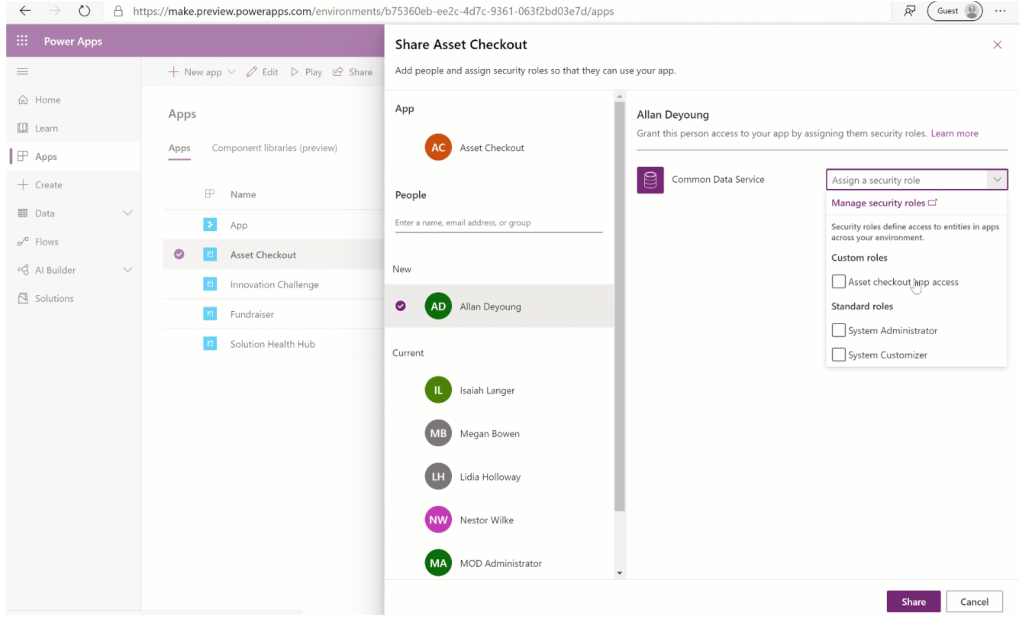
      Microsoft has now made it easier for users to share model-driven apps. There is now a sharing panel where users can choose who to share an asset with and manage security roles.  The two-step process to share model-driven apps is described below:

      Share a model-driven app

      Sharing a model-driven app involves two primary steps. First, associate a one or more security role(s) with the app then assign the security role(s) to users.

      1. Visit https://make.powerapps.com
      2. Select a model-driven app and click Share.
      3. Select the app then choose a security role from the list.
      4. Search for a user.
      5. Select the user then select a role from the list.
      6. Click Share.

      Share the link to your app

      Unlike sharing canvas apps, sharing model-driven apps does not currently send an email with a link to the app.

      To get the direct link to an app:

      1. Edit the app and click the Properties tab
      2. Copy the Unified Interface URL.
      3. Paste the app URL in a location so that your users can access it, such as by posting it on a SharePoint site or send via email.


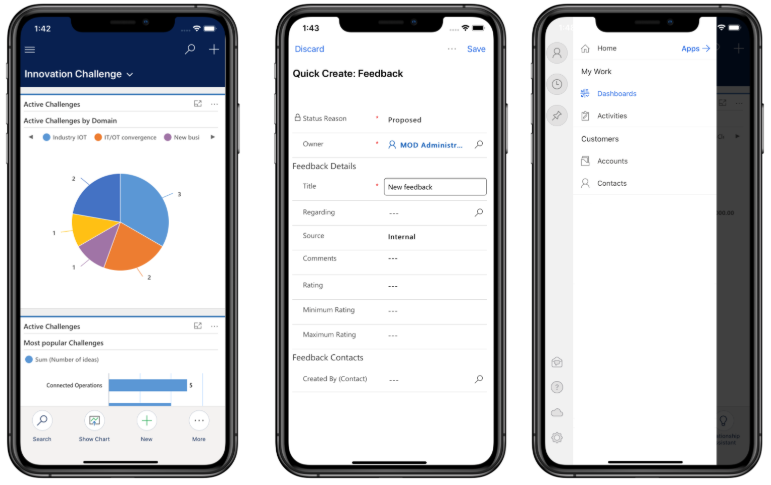
      3. Public preview of new Power Apps mobile app that runs both canvas and model-driven apps

      Using Power Apps via the mobile app has been difficult for users. Mobile users have to install and use two separate apps to utilize both canvas and model-driven apps. Now, the new Power Apps mobile app has the ability to run both canvas and model-driven apps in a single list of apps on a mobile device.

      In addition to the new capabilities, the changes to the UX have enhanced the usability on a mobile. Just some of the benefits of the new interface are:

      • Native look and feel
      • Gesture support
      • Updated animations
      • Interaction patters


      4. AI Builder 2020 Wave 1 updates

      AI Builder is adding new capabilities in Power Apps and Power Automate to make it easier to consume your AI models. New capabilities have been released since April 2020 and will continue to be released into September 2020. The list of the models that are/will be available in Wave 1 are below:

      • Form Processing analyzes the structure of your documents to locate and extract key-value pairs and table data from form documents. Train your model and define the information that you want to retrieve from your form documents.
      • Object detection lets you count, locate, and identify objects within an image. You can use this model in PowerApps to extract information from pictures you take with your device’s camera.
      • Sentiment analysis helps you identify positive or negative sentiment in emails, social media, customer reviews, or any text data you want to analyze. This model evaluates your text input to determine if it’s positive, negative, or neutral.
      • Language detection identifies the predominant language of a given text. The model analyses the text and returns the detected language with a confidence score.
      • Key phrase extraction identifies the main points in text. For example, given the sentence “The food was delicious and there was wonderful staff”, the model would identify “food” and “wonderful staff” as key phrases.
      • Text recognition extracts words from documents and images. It uses advanced optical character recognition (OCR) to detect embedded print and handwritten text.
      • As they are now generally available, these models are considered premium features. You need an AI Builder license or an active trial to use them.
      • Prebuilt flows quickly enable common AI Builder automation tasks in Power Automate. For example, automatic sentiment analysis of Dynamics emails.


      5. Mixed Reality in Power Apps

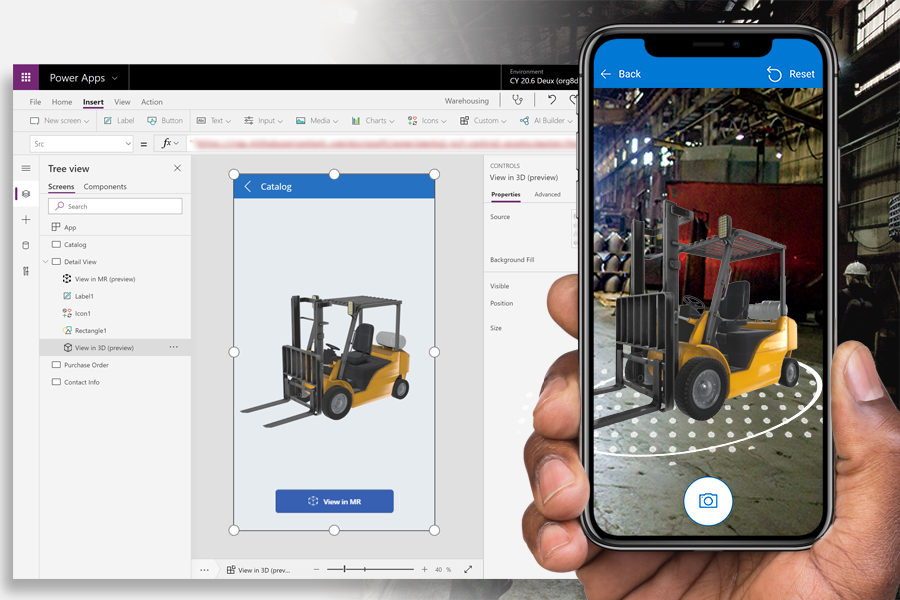
      It’s no longer necessary to have an extensive developer background to accomplish mixed reality in Power Apps. Mixed reality apps have been proven to positively impact the productivity of first line workers. For businesses to take advantage of mixed reality apps without Power Apps, they’ve had to make huge investments for hiring specialized developers.

      The new capabilities work as a drag-and-drop development making it easy for everyday business users to create mixed reality apps. The ability for users at all organizational levels to utilize mixed reality will be paramount in furthering automating business processes.

      Project Online to Microsoft Teams Partner Talk with Mike Gannotti

      Marque360’s Senior Solutions Architect, Neall Alcott sat down with Mike Gannotti, Microsoft HLS Technology Specialist to discuss Microsoft Teams integration with Project Online. Teams has proven to be the ideal solution for project management, with its extensive collaboration tools, but doesn’t have a seamless integration with Project Online to make it necessary for power users to completely manage their projects through Teams.

      Marque360 has worked to develop a connection with Teams and Project to ensure customers the robustness and functionality from

      Planner Integration

      Project Online with the collaboration and user-friendly UI Teams is known for. In this video, Neall demonstrates Marque360’s Project Online to Microsoft Teams solution that even connects Planner!

      “I had the opportunity to partner with Marque360 and feature them on our blog site- with a video of over 12,000 views from our Healthcare and Life Sciences customers and its all around the great integration they have done around Microsoft Teams – one of our principal engines that we need integration with. They brought Project Online and were able to integrate it with Planner and Microsoft Teams to provide an end- to end solution that really meets the needs of a lot of my customers.”- Michael Gannotti, Microsoft Teams Principal, Key Influencer.


      Read more about the Solution and Request a DEMO!

      Read Mike Gannotti’s full blog post and watch the video here: https://techcommunity.microsoft.com/t5/healthcare-and-life-sciences/microsoft-teams-and-project-online-integration-a-marque360/ba-p/691101


      Marque360 empowers businesses with innovative project management solutions and expert services.

      Address 591 Mantua Blvd, Suite 201, Sewell, NJ 08080

      Email: info@marque360.com